Finding the best free screen recording tools for beginners shouldn’t feel like a research project, but with dozens of options claiming to be “the easiest” or “the best,” it’s easy to end up installing three different apps before recording a single video. The good news is you don’t need anything expensive or complicated to get started — a handful of genuinely solid free tools cover almost every beginner use case, whether that’s a quick tutorial, a bug report for work, or a walkthrough for a YouTube channel.
This guide skips the generic listicle approach and focuses on which tool actually fits which situation, since “best” really depends on what you’re recording and where the video needs to end up.
What to Look for in a Free Screen Recorder
Before comparing specific apps, it helps to know what actually matters for beginners. Recording length limits trip people up constantly — some free screen recorder tools cap you at 5 or 10 minutes per session, which is fine for quick clips but frustrating for longer tutorials. Watermarks are another common catch; plenty of “free” tools slap a logo across your video unless you upgrade, which defeats the purpose if you’re making anything you plan to actually share.
Beyond that, check whether the tool captures system audio, microphone audio, or both at once, since a tutorial without narration usually isn’t very useful. Export format and resolution also matter more than beginners expect — a recording that only saves in an obscure format can be a hassle to edit or upload later.
Best Free Screen Recording Tools for Beginners: Top Picks
OBS Studio – Best for No Limits, Steeper Learning Curve
OBS Studio is completely free, open-source, and has no recording time limit, no watermark, and no restrictions on resolution or frame rate. It’s genuinely the most powerful free option available, supporting multiple scenes, webcam overlays, and audio mixing that rivals paid software.
The trade-off is setup. OBS has more settings than a true beginner might expect on first launch, and getting audio levels balanced correctly takes a little trial and error. That said, once configured once, it just works — and for anyone planning to record regularly, the time invested upfront pays off quickly compared to hitting limits on simpler apps later.
ShareX – Best for Quick, Lightweight Recording on Windows
ShareX is a free, open-source tool built primarily for Windows users who want something lighter than OBS. It handles screen recording, GIF creation, and screenshots all in one lightweight app, with no watermark and no forced time limit. It’s less feature-heavy than OBS, which is exactly the appeal for beginners who just want to hit record and go without touching a settings menu first.
The interface feels a bit more utilitarian than polished, but for straightforward screen captures — a quick how-to, a bug demonstration, a short clip to send a colleague — ShareX gets the job done with minimal friction.
Loom – Best for Quick Sharing and Team Communication
Loom’s free tier caps recording length (typically around five minutes per video on the free plan), but it makes up for that limitation with genuinely effortless sharing. Record your screen, and Loom instantly generates a shareable link — no exporting, no uploading to a separate platform, no file management at all. For quick work updates, async communication with a remote team, or short walkthroughs, this convenience is hard to beat.
It’s not the right tool for longer tutorials given the free-tier time cap, but for the specific use case of “record something quick and send it,” Loom is arguably the fastest workflow of any tool on this list.
Windows Game Bar / macOS Screenshot Toolbar – Best for Zero Setup
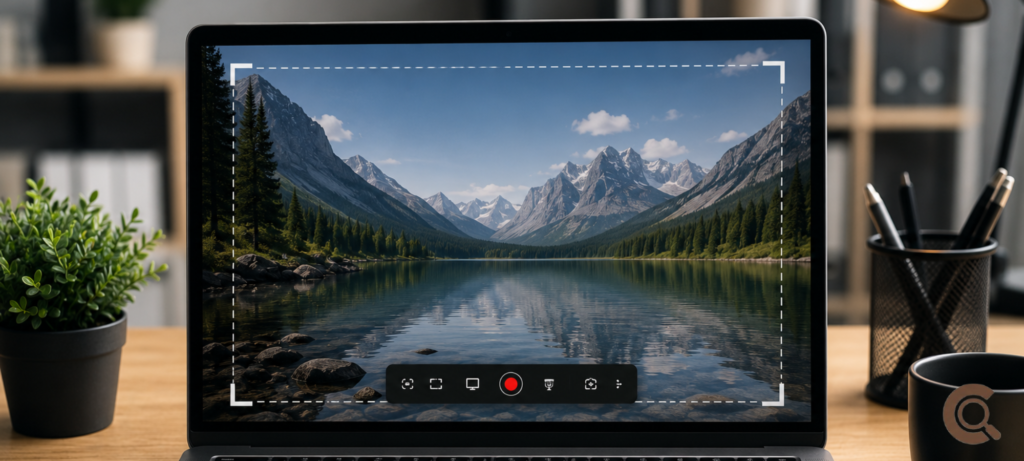
Both major operating systems now include built-in screen recording with no download required. Windows’ Game Bar (Win + G) and macOS’s screenshot toolbar (Shift + Cmd + 5) cover basic screen recording without installing anything at all. Neither is particularly feature-rich — no scene switching, limited editing, and Windows’ Game Bar is technically built for gaming rather than general use — but for a one-off recording where you don’t want to install software, these built-in options are genuinely useful to know about.
Which Tool Should You Actually Use?
- Recording tutorials for YouTube or a course: OBS Studio, once you’ve spent 20 minutes learning the basic setup.
- Quick work updates or async team communication: Loom, for the instant shareable link.
- Lightweight recording without extra features: ShareX, especially if you’re already on Windows and want something simpler than OBS.
- A one-off recording with zero setup: Your operating system’s built-in tool.
If you’re already thinking about where recorded videos will live long-term, it’s worth having a storage plan sorted out before your recordings pile up — our guide on alternative cloud storage services besides Google Drive covers a few solid free options for that. And if screen recording is just one piece of a broader effort to work more efficiently, automation tools to improve productivity is worth a look for streamlining the rest of your workflow too.
Common Mistakes Beginners Make When Screen Recording
Recording at a resolution higher than needed is a surprisingly common issue — a 4K recording of a simple tutorial creates enormous files for no real benefit, since most tutorial content is perfectly clear at 1080p. Forgetting to check microphone levels before a full recording is another classic mistake; a five-minute test clip beforehand saves the frustration of redoing an entire recording because the narration came out too quiet or clipped.
Not closing unnecessary notifications before recording is a small thing that causes a lot of retakes — nothing derails a clean tutorial faster than a random pop-up notification appearing mid-recording. Taking thirty seconds to enable “do not disturb” mode before hitting record solves this completely.
Frequently Asked Questions
What is the best free screen recorder with no time limit?
OBS Studio has no recording time limit and no watermark, making it the strongest choice for longer tutorials or anything without a strict length cap. ShareX is another solid no-limit option for lighter, quicker recordings.
Is Loom good for beginners?
Yes, for short recordings specifically. Loom’s biggest advantage is instantly shareable links with zero export or upload steps, though its free tier caps recording length, which makes it less ideal for longer tutorials.
Do free screen recorders add a watermark?
It depends on the tool. OBS Studio and ShareX don’t add watermarks. Some other free tools do add a logo or watermark unless you upgrade to a paid tier, so it’s worth checking before recording anything you plan to publish.
Can I record my screen without installing any software?
Yes. Windows includes Game Bar (Win + G) and macOS includes a built-in screenshot toolbar (Shift + Cmd + 5), both capable of basic screen recording without any download.
What’s the best free tool for recording tutorials specifically?
OBS Studio is generally the best fit for tutorials since it has no time limit, supports high-quality audio and video, and allows scene switching if you want to show multiple windows or a webcam overlay during recording.
Final Thought
The best free screen recording tools for beginners really come down to matching the tool to the task rather than chasing the single “best” option. OBS Studio covers almost anything with enough patience for initial setup, Loom wins for fast and frictionless sharing, ShareX splits the difference nicely on Windows, and the built-in OS tools cover the rare one-off recording without installing anything at all. Start with whichever matches what you’re recording today, and there’s no real cost to switching later once your needs change.